
Project and Layer Access
Introduction
A user can access a GRIDit project after registration by an admin with a role for one or more projects. One this is done, user will have access to all data in the project and can edit depending on the chosen role (Reader or Contributor). A project has multiple levels of access. Access to an individual layer can be adjusted to restrict (who can see the layer) or elevate (who may modify or manage the layer).

How access works
Access can be granted on the project level OR the layer level. Project level is the default access level and is applied unless access is defined on the layer level. Practically, when you assign access to a project (as Reader project role or Contributor project role) the user will have access to all layers in the project. If you need to restrict (or elevate) access to a specific layer to a user or group, you need to do so on a per layer basis. Layer level access can be granted to a user or a group (Periplus recommends using groups).
After a layer is created, the access can be adjusted (this was not possible before). The layer author can choose to provide access to 1) everyone in the project as define by project role OR 2) to restrict the layer to some users or groups (as defined in the layer properties)
Setting up more granular (layer level) access is powerful and needs to be thoroughly thought out. Please read layer level access below thoroughly to avoid locking users out from layers. If you are not sure or have questions, please email support@gridit.nl
Project level access
When a user is granted access to a project, they are granted access to all layers, their level of access depends on the project role that has been assigned to them. Project level access can only be given to a user (not a group). This remains the same in 2026.1 release as it did in all prior releases. Additionally, project level access determines who can create a layer.
Users can check their assigned project role(s) in the upper right corner of the GRIDit interface, along with the specific project(s) they have access to.
Permission to add a new layer within a project is given via a project role (contributor or admin).
GRIDit user roles
Organization Admin
- Can manage organization settings.
- Can manage users/groups.
- Can manage projects.
- Full access to data (can also recover restricted layers).
Project Admin
- Can create, update, read, and delete all project-related data (can also recover restricted layers).
- Can manage projects.
Project Contributor
- Can create, update, read, and delete all project-related data (unless specified otherwise on the layer level).
- Cannot manage users or licenses.
Project Reader
- Read-only access to project data (unless specified otherwise on the layer level).
- Can create, update, read, and delete personal layers and settings where applicable.
An overview of the permissions per role:
| Organization Admin | Project Admin | Contributor | Reader | |
|---|---|---|---|---|
| Add projects | ✔ | ✖ | ✖ | |
| Clone projects | ✔ | ✖ | ✖ | |
| Add new users | ✔ | ✖ | ✖ | |
|
Link layer into current project (requires access o both projects) |
✔ | ✔ | ✖ | |
| Add files to project | ✔ | ✔ | ✖ | |
| Mark a layer as a personal layer | ✔ | ✔ |
✖ all added data are personal layers only |
|
| Layer editing | ✔ | ✔ | ✖ | |
| Layer management | ✔ | ✔ | ✖ | |
| Data portal | ✔ | ✔ | ✖ | |
| Edit Attributes | ✔ | ✔ | ✖ | |
| Export data from layers | ✔ | ✔ | ✔ | |
| Export files from layers | ✔ | ✔ | ✔ | |
| Add WMS/WFS layers | ✔ | ✔ |
✔ personal layers only |
|
| Add Vector data | ✔ | ✔ |
✔ personal layers only |
|
| Add Raster data | ✔ | ✔ |
✔ personal layers only |
|
| Manage themes | ✔ | ✔ |
✔ personal layers only |
|
| Theme Display options | ✔ | ✔ |
✔ personal layers only |
|
| Select Features | ✔ | ✔ | ✔ | |
| Measure tools | ✔ | ✔ | ✔ | |
| Burial (Difference) Assessment | ✔ | ✔ | ✔ | |
| Profile tools | ✔ | ✔ | ✔ | |
| Calculate Raster | ✔ | ✔ | ✔ | |
| Markers | ✔ | ✔ | ✔ | |
| Edit Waypoint Attribute table | ✔ | ✔ | ✔ | |
| 3D View | ✔ | ✔ | ✔ | |
| Export map | ✔ | ✔ | ✔ | |
| View Attribute table | ✔ | ✔ | ✔ | |
| View project files | ✔ | ✔ | ✔ | |
| Background maps | ✔ | ✔ | ✔ | |
| External Service ENC The Netherlands | ✔ | ✔ | ✔ | |
| External Service Global Open Sea Map | ✔ | ✔ | ✔ |
Layer level access
As of 2026.1 access can be granted on the layer level. Access on this level overrides project level access, but only for the specific layer (all other layers in the project will follow project level access, unless specified on the layer level). Layer level access does not determine who can create a new layer.
When using layer level access Periplus highly recommends setting up user groups, specifically for administrators
How to set access at the layer level?
For an existing layer:
- In the later tree, on the desired layer select (...) and then edit
- Select the access tab
- Add a user or group (we recommend using groups)
- Set desired access level
- Once set, a padlock icon will appear on the layer
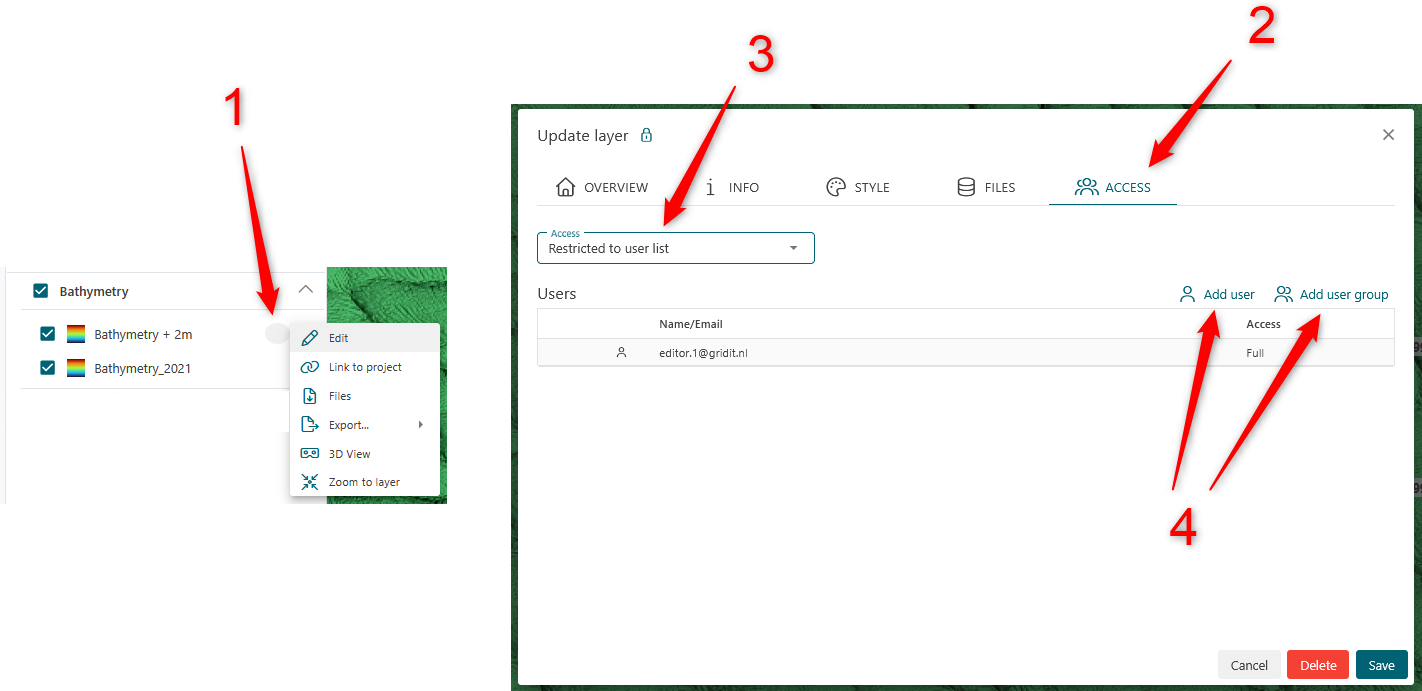
For a new layer:
When importing a file, use the access dropdown box as pictured below.
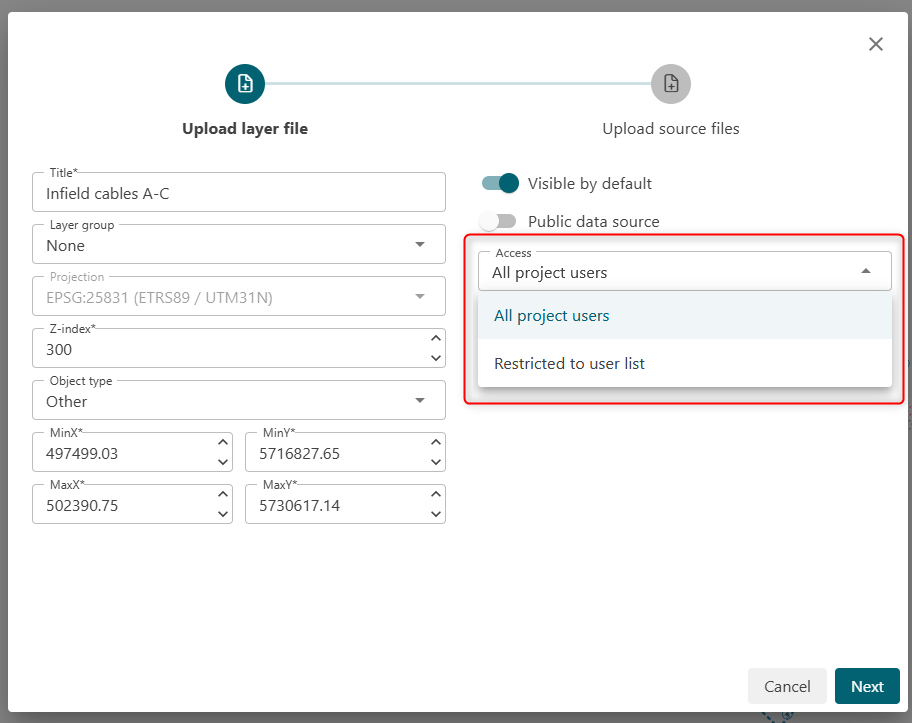
It's recommended to create a user group and assign full access to that group each time you create a layer (rather then a specific user). Even a group with a single user reduces your chances of locking users out. A user group can only be created by an organization admin.
Layer Access Levels:
| Access | What does this access allow? |
| Outline-only |
User can only see:
User cannot view the layer, only the outline of it. |
| Read-only |
User can:
|
| Edit |
User can:
|
| Full |
User can:
|
How does layer level access override project level access?
Here is an example to illustrate how access works:
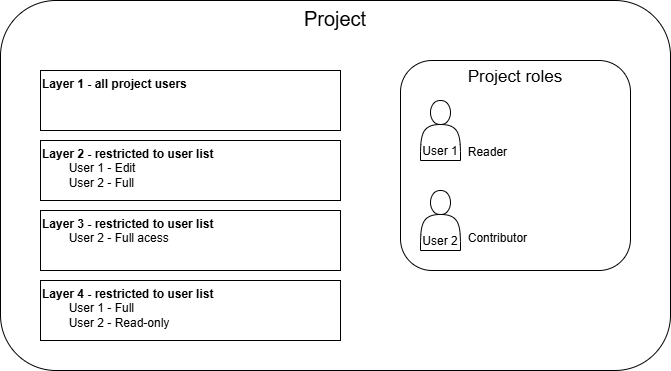
User 1 access:
- Cannot add a new layer because their project role is Reader
- Layer 1: Read-only access (as defined in project role)
- Layer 2: Has edit access (because this is specified on the layer level)
- Layer 3: Has no access (layer level access overrides project role for this layer - user is not specified)
- Layer 4: Has full access (because this is specified on the layer level)
User 2 access:
- Can add a new layer because their project role is Contributor
- Layer 1: Full access (as defined in project role)
- Layer 2: Has full access (because this is specified on the layer level)
- Layer 3: Has full access (because they are not specified in layer level)
- Layer 4: Has read-only access (layer level access overrides project role for this layer)
Outline-only access
When providing outline-only access, user will be able to:
- See the outline label.
- See the Layer name.
- See the email address for all user who have full access to the layer.
- Information text in the Layer Properties.
This information is required for a user to know what the layer is and who to contact.
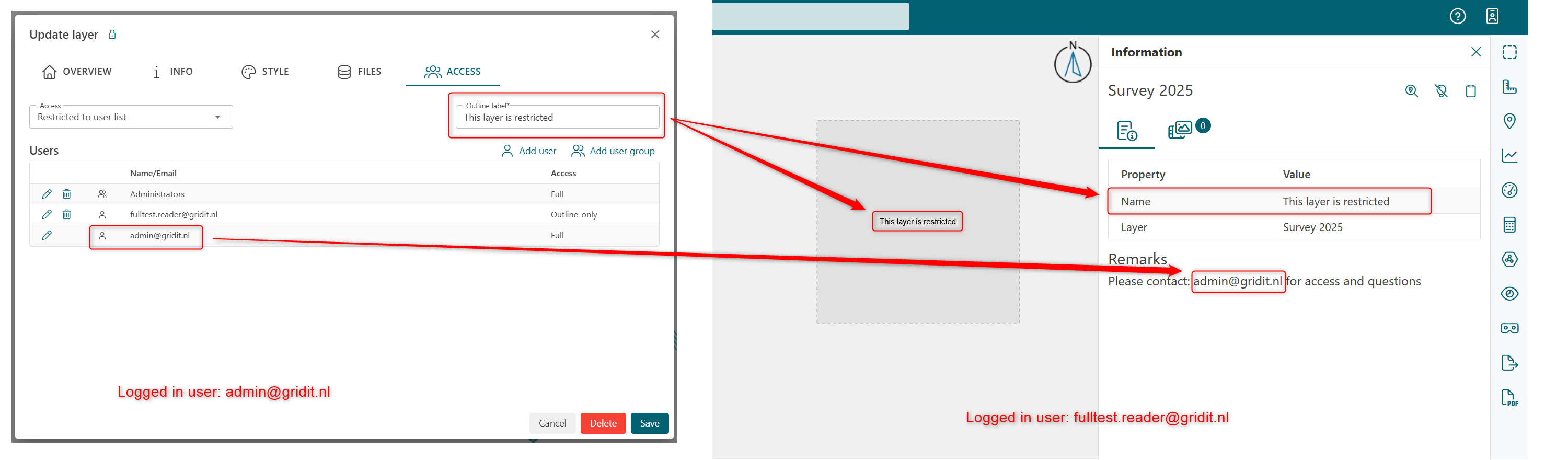
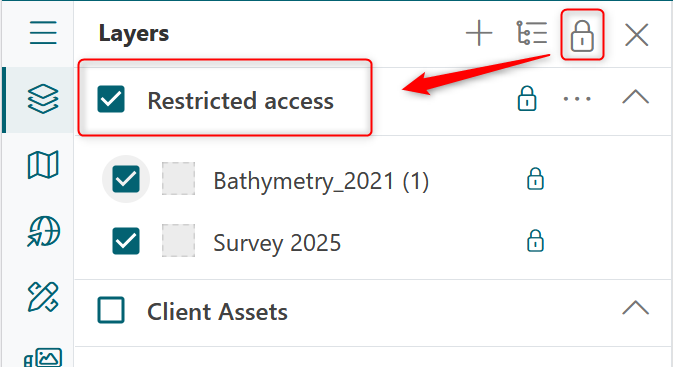
User can access layer they have outline-only access to at the top of the layer tree:
What if my users lock themselves of a layer?
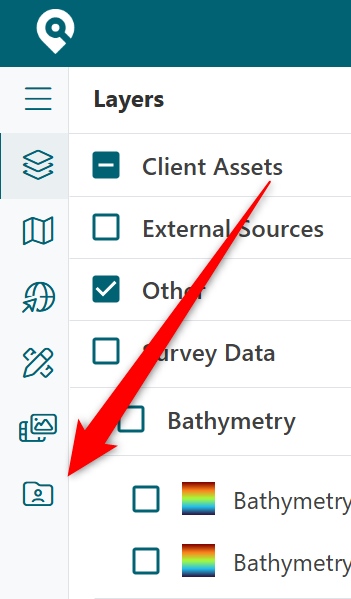
An user with project administrator role can access any restricted layers and provide access again, first by providing full access to themselves, and then unrestricting the layer.
This can be done via this menu item:
Periplus Access
Limited Periplus employees also use GRIDit for administration and support purposes. In some cases they add layers to projects and or look at existing layers for support purposes. If you have layer level access enabled then you will first need to contact support@gridit.nl and then provide us access.
FAQ
How to grant access to all layer in a project? (default)
In most cases you will want all users to have access to all layers in a project which is why this is the default. You can set project level access in your organization's page. A detailed explanation is available User roles page.
How to restricted project access (start from zero access)
In some cases you will want to start from a point of no access for any users. To achieve this you should use groups (but it's not required).
- Create a user group you want to restrict (organization administrator must do this)
- Add all users (that you would like to restrict) to this user group (organization administrator must do this)
- Each time a layer is created restrict access (by only allowing access to the author)
- After layer is added, set specific access as to the layer, per group, as required (or per user)
- Access to existing layers can also be restricted at any time but it's advised to think about access when the layer is created
If you already have layers created before you created the groups be sure to update the access to them.
In this scenario using groups will greatly reduce management of access.
Users that import data should be aware of your company's access policy.
Who can create a layer for other project users to see?
The user needs to be given a project level role (contributor). Every layer a contributor adds is visible to all other project users unless they set restrictions.
Users who have a project role of reader can create layers, but only they can view them.
What if a user is assigned access via a group and individually?
If a user is a member of a group that has been assigned access to a layer AND they have been assigned access to a layer then the user will have the highest level of access to the layer. This goes the same for a user that is assigned to two groups, whichever group has the highest access will be granted to the user. For example, if a group is given outline-only access and a member of that group is given edit access, then the user will be able to edit the layer.
What if my users lock themselves out of a layer?
An user with project administrator role can access any restricted layers and provide access again, first by providing full access to themselves, and then unrestricting the layer.
This can be done via this menu item: