Logging in
Overview
There are two ways to log in to GRIDit:
- By using your Microsoft Account via Single Sign-On (preferred)
- Email address and password combination (if you don't have a Microsoft Account)
Microsoft Account (Single Sign-On)
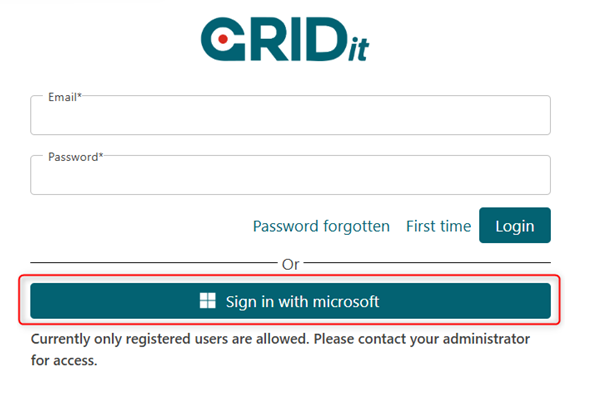
From the login page, click 'Sign in with Microsoft''.
Logging in for the first time
When logging to GRIDit for the first time with Microsoft Authenticator, you are likely to see the following screen.
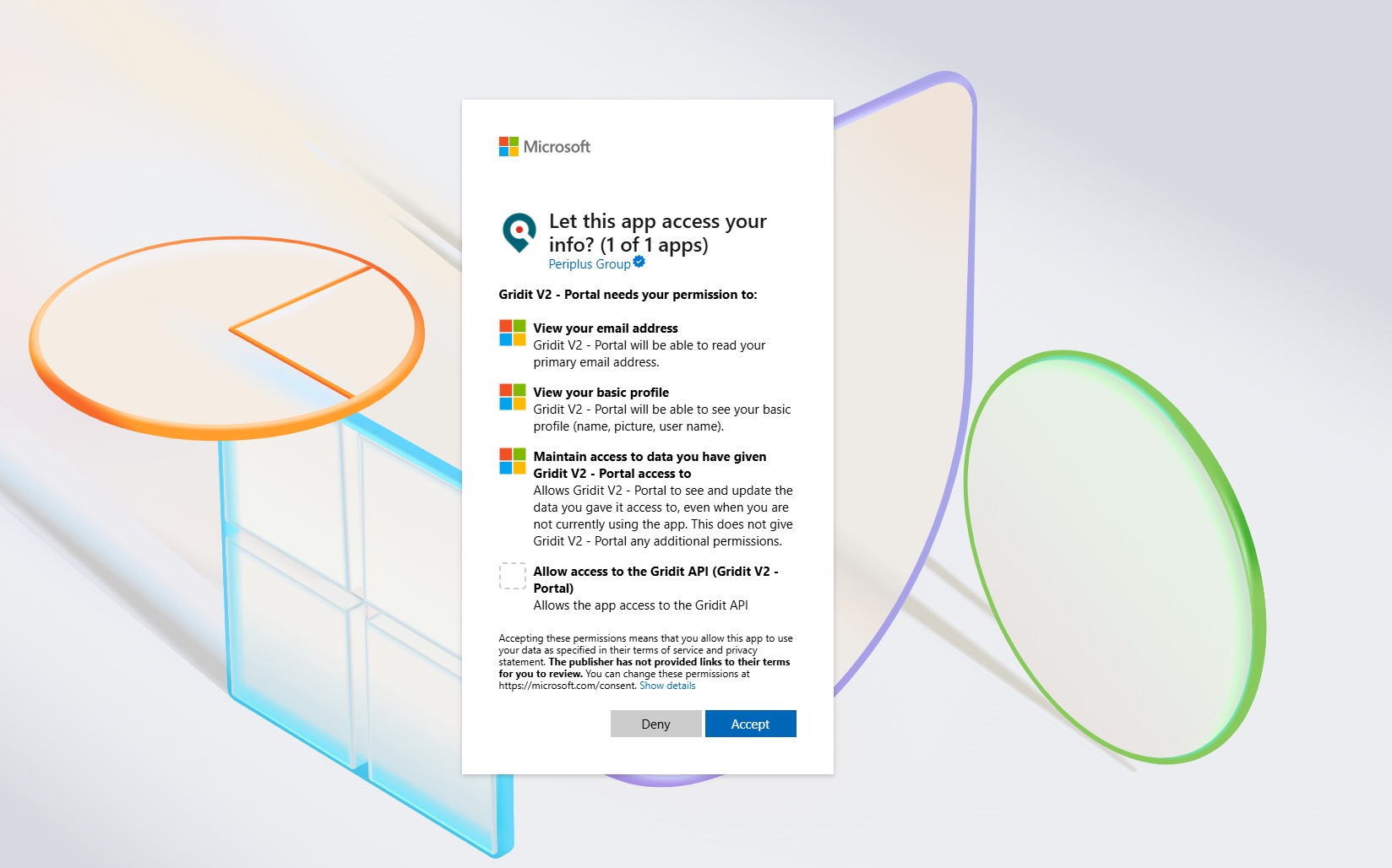
Click ‘accept' to activate authentication for GRIDit.
If you work for a large organization, your company's IT team may need to approve GRIDit's application registration. They will need the following information:
- Display name: Gridit V2 - Portal
- Application (client) ID: ac7c66ec-0c5f-4ae0-a90b-e71ff3e8387f
If you have problems logging in, or if you have any questions, please contact our support team at info@gridit.nl.
Future Two-Factor Authentication (2FA) or Multifactor Authentication (MFA) Logins
You will be taken through the standard two-factor or multifactor authentication process as set by your IT team.
Login with User Name and Password Combination
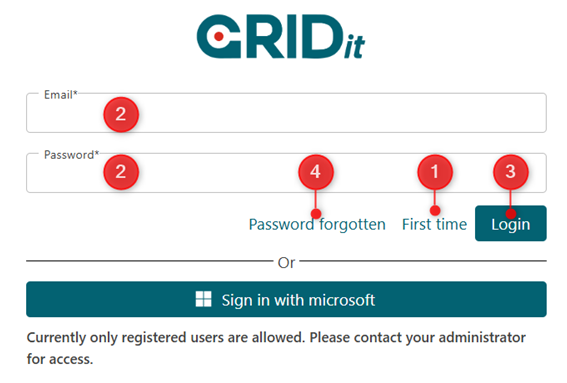
- First time: To create an account with an email address and password combination (see below).
- Email & Password: Use this for future email/password logins.
- Login: Click when user name and password have been entered.
- Password forgotten: To reset your password (see below)
Logging in for the first time
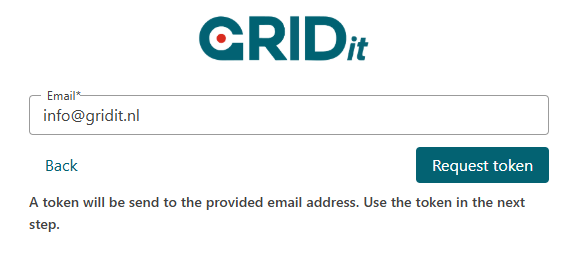
On clicking the ‘First time’ button you will see the following screen. Enter your email address and click 'request token'.
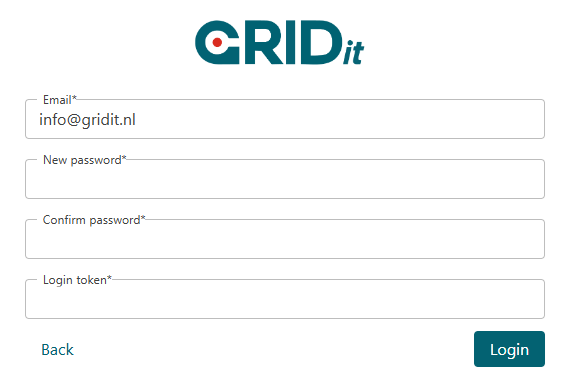
Next, you will see this screen:
Reset Password
Click the ‘password forgotten’ button on the login screen.
The process is then similar to logging in for the first time (see above).
You will be asked to fill in an email address, to which a token will be sent.
Then fill in your new password and token.
Landing page
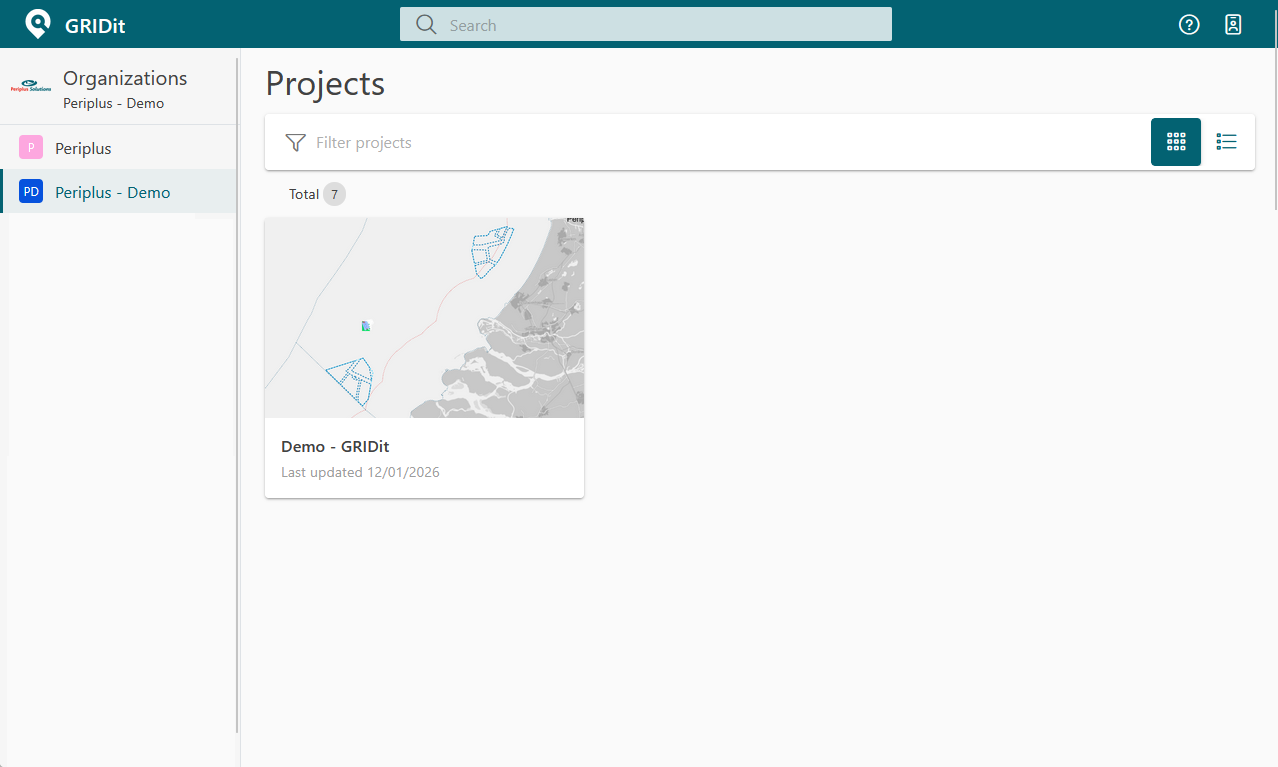
Once logged in, the user is presented with an overview of their organization's project to which they have access. Select a project to open it.